| Support Category: Login Request |
| Specialist Notes: |
To assist a user with resetting their password should logging into the CLC via SSO not work, please use the following steps:
1. Log in with your personal ID
2. Hover over (do not click) the Admin button in the navigation bar
3. In the menu bar below it, click on ‘Users’
4. Enter the user’s last name, first name OR enter the user’s e-mail under 'UserID'.
5. Under 'Options' click on the drop-down and select 'Change Password'
6. A ‘Password Reset Options’ window opens
7. Make sure the default option ‘Send Forgot Password email. The user must have an email address saved’ is chosen.
8. Click ‘OK’
Email is sent to the user from 'CLCSupport@doc.gov', with a link to reset their password.
Instructions for processing login requests in CSOD can be found here.
| Standard Response: |
I have reset your account. Your username is your full DOC government email address. You will be receiving an email titled 'Commerce Learning Center Password' from 'CLCSupport@doc.gov' with a link to reset your password. Be sure to check your junk mail for this email.
Please be aware that this 'URL' link is only valid for 48 hours. After the 48-hour validity period, clicking this link will navigate you to a page on which you must enter your login name to generate another email with a new link.
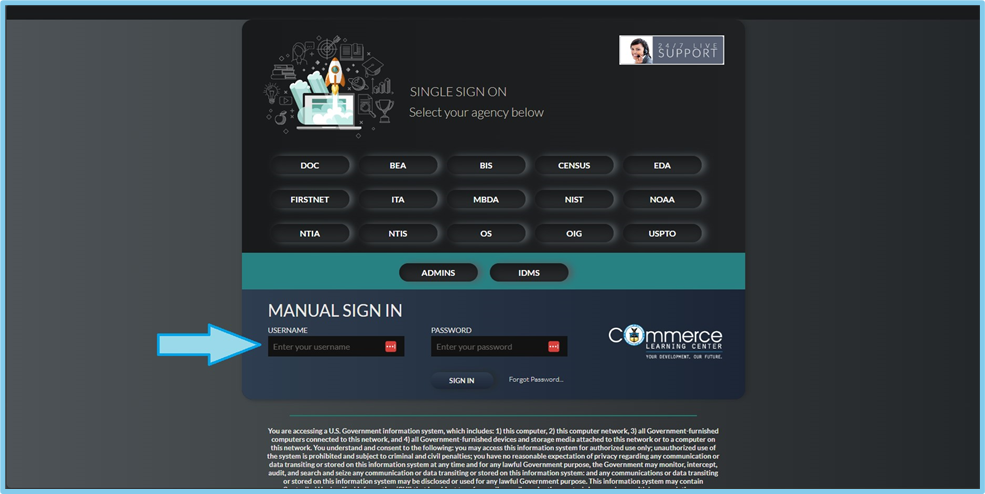
To log in, you will bypass selecting your bureau from those listed as it will require you to sign in via SSO, and instead enter your DOC email address as your username and your password as seen below.